Back

Discover CALS

See how our current work and research is bringing new thinking and new solutions to some of today's biggest challenges.

Remote Desktop - Mac

The instructions below will guide you through establishing a Remote Desktop session with a CALS OIT managed computer from a Mac.  Please use the set of instructions that aligns with your use-case.

All Remote Desktop connections from off-campus require the use of CU VPN.
Mac to Mac / Linux

If you’re attempting to connect to a Cornell Mac or Linux computer from a Mac, follow the directions below.

Step 1

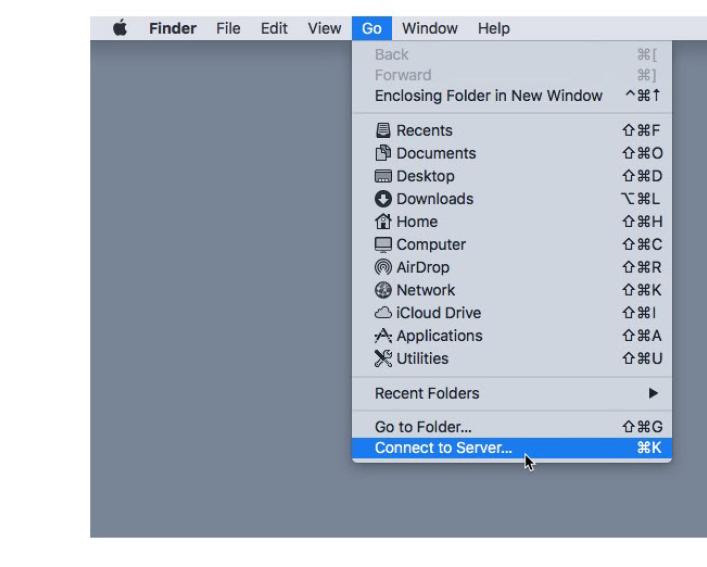
From the Finder app, click the Go menu and select "Connect to Server".

Step 2

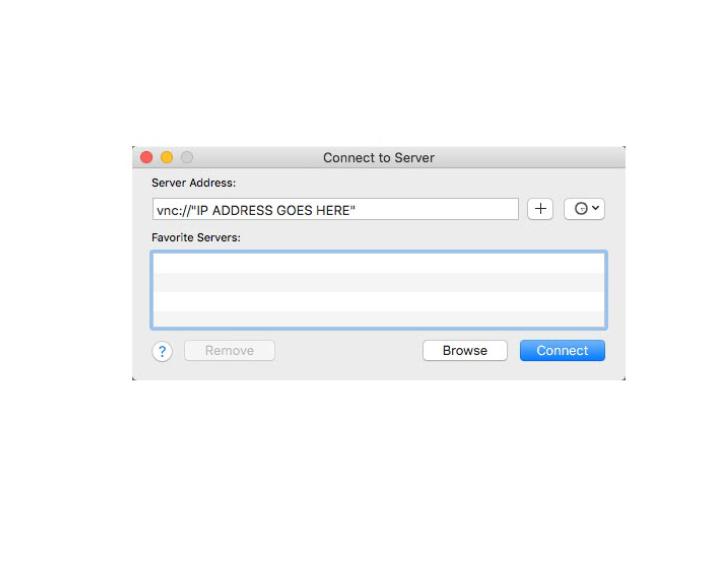
In the Server Address field, type vnc:// and the IP address of the remote computer.

Step 3

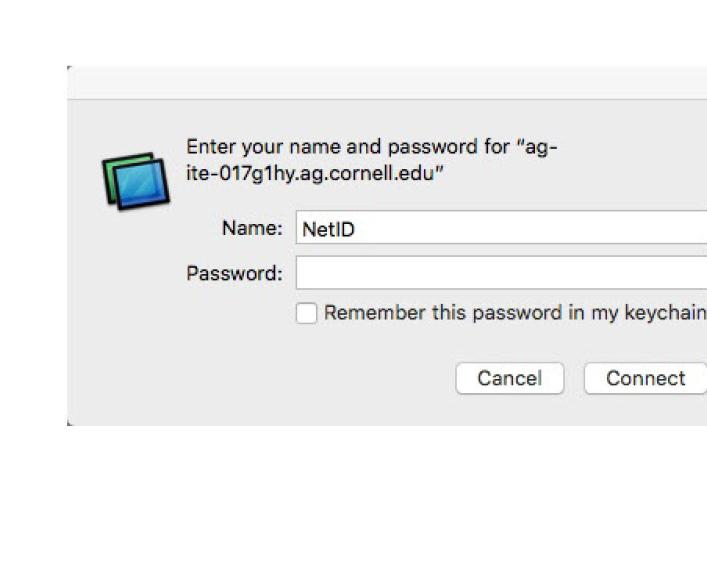
Type your Cornell NetID in the Name field, enter your password, and click "Connect".

Success!

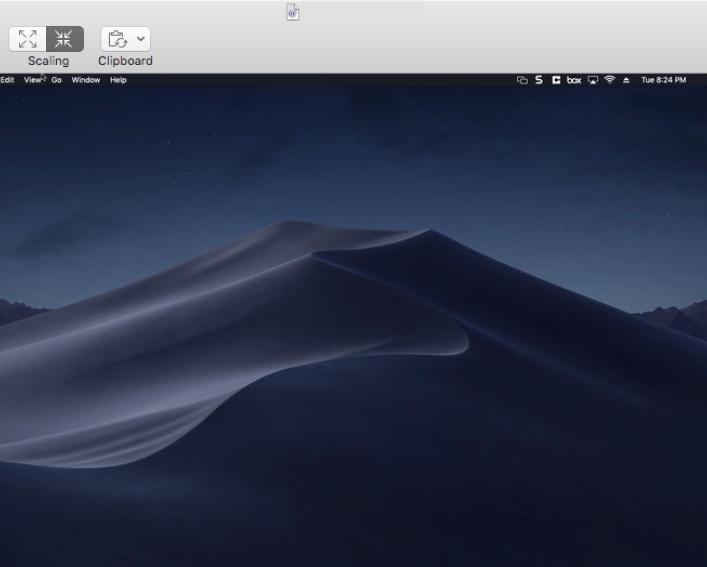
You're now remotely controlling your Cornell Mac /Linux computer.

Screen capture of the Finder app menu on a Mac
Screen capture of the Mac Connect to Server app
Screen capture of Connect to Server authorization prompt
Screen capture of successful Mac VNC session.

Mac to PC

If you’re attempting to connect to a Cornell PC from a Mac, follow the directions below.

First, if you don't have the Microsoft Remote Desktop 10 app installed, you'll need to download and install it.  You can find it for free on the Apple App Store.

After you've installed Remote Desktop, follow the steps below.

Step 1

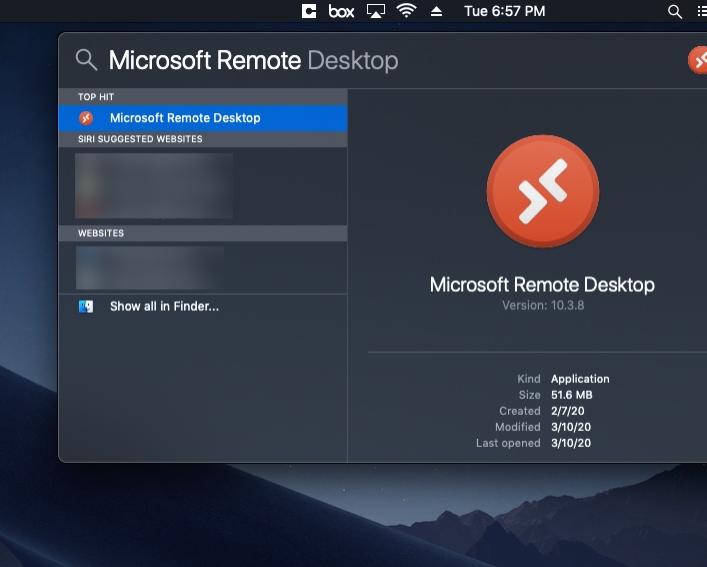
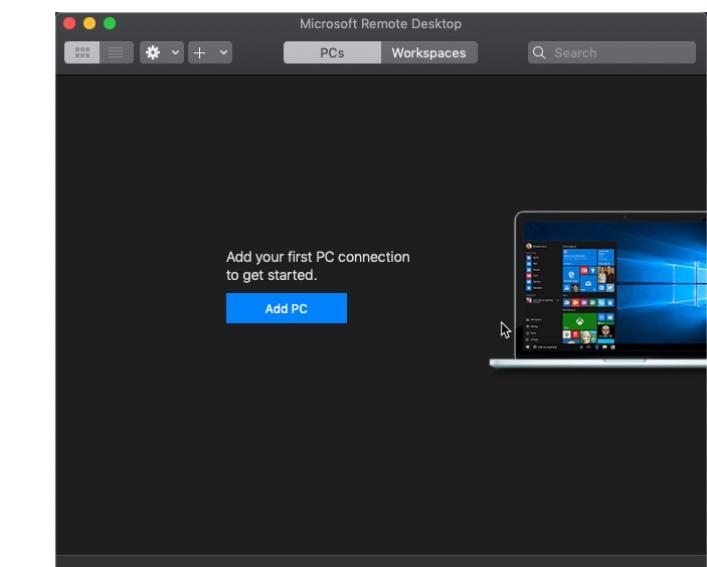
Do a Spotlight search for Microsoft Remote Desktop, and launch the app.

Step 2

Click on "Add PC".

Step 3

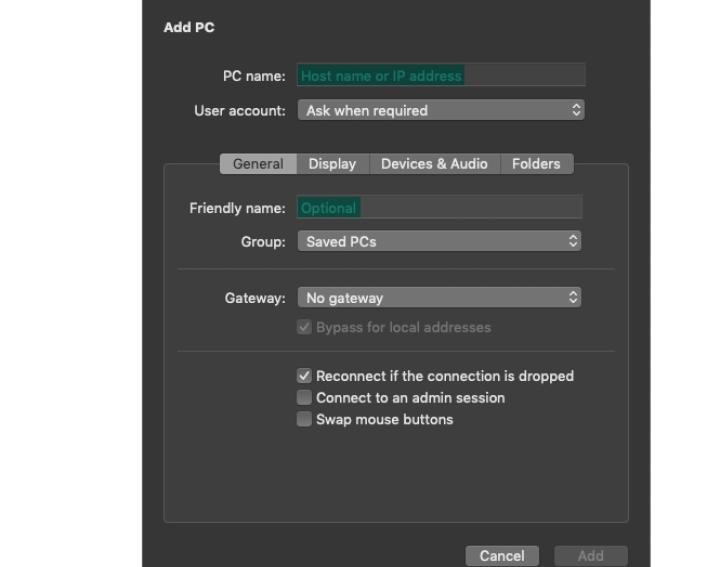
Under the PC "Name field" enter the IP address of the computer you wish to connect to and give the connection a friendly name.

Step 4

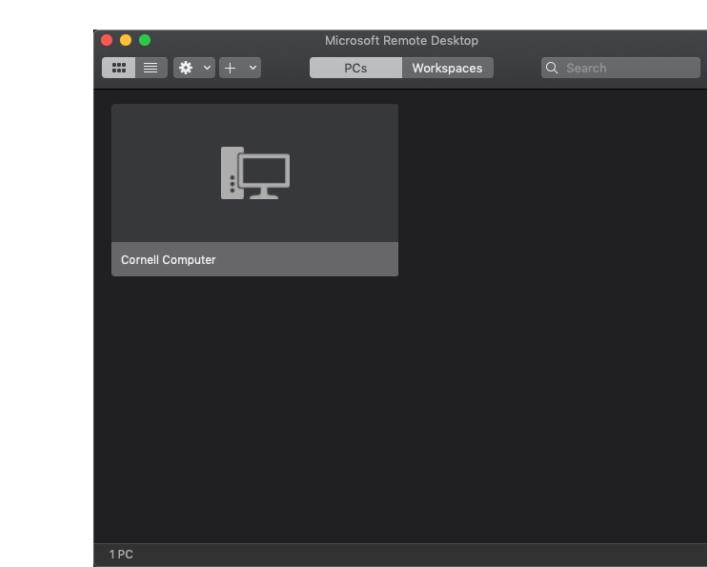
Double click the connection you just created to begin a Remote Desktop session.

Step 5

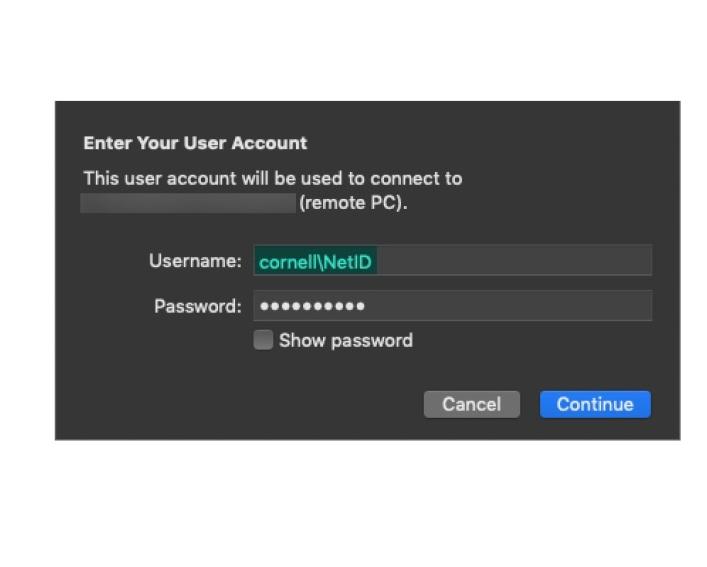
In the Username field, type cornell\ then your Cornell NetID, as depicted.  Enter your password and click "Connect".

Success!

You're now remotely controlling your Cornell PC.

Screen capture of Mac Spotlight search.
Screen capture of Microsoft Remote Desktop 10 for Mac
Screen capture of Microsoft Remote Desktop 10's connection configuration prompt
Screen capture of Microsoft Remote Desktop 10 connection selection screen
Screen capture of Microsoft Remote Desktop 10 connection authorization prompt
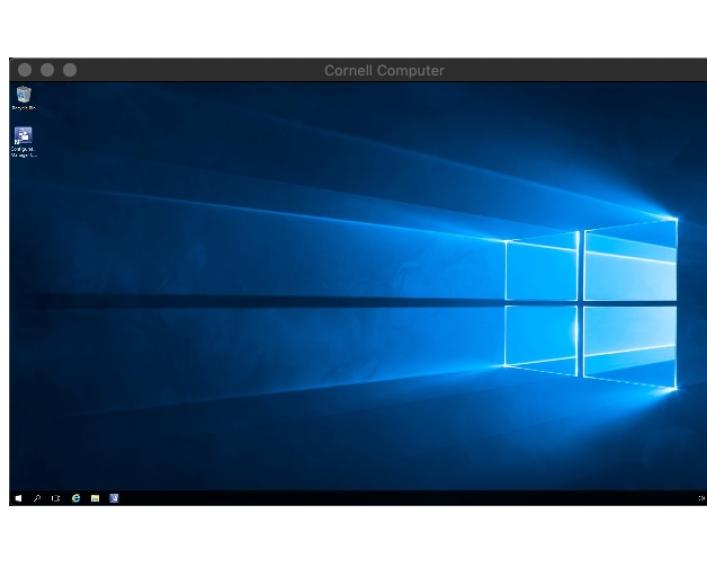
Screen capture of successful Microsfot Remote Desktop 10 session.